PowerShell 7 có gì mới
Như bạn đã biết, nhóm PowerShell vừa phát hành phiên bản PowerShell mới có tên PowerShell 7. PowerShell 7 sẽ mang đến một số tính năng và cải tiến mới không chỉ cho người dùng đã sử dụng PowerShell Core 6 mà còn cho những người hiện đang sử dụng Windows PowerShell 5.0. Tôi muốn nhanh chóng cung cấp cho bạn tổng quan về những tính năng mới trong PowerShell 7.
Cải tiến tính năng mới – Có gì mới trong PowerShell 7
Có nhiều cải tiến trong PowerShell 7 khiến nó trở thành phiên bản PowerShell tốt nhất từ trước đến nay. Gần như không thể liệt kê tất cả chúng trong một bài đăng trên blog, vì vậy tôi sẽ tập trung vào một lần, đó là lần quan trọng nhất đối với tôi.
Out-GridView, -ShowWindow và các lệnh ghép ngắn GUI khác đã quay trở lại trên Windows
Với việc .NET Core 3 mang lại hỗ trợ WPF trên Windows, nhóm PowerShell đã có thể mang lại một số công cụ đồ họa và lệnh ghép ngắn phổ biến như Out-Gridview , Show-Command và Get-Help -ShowWindow.
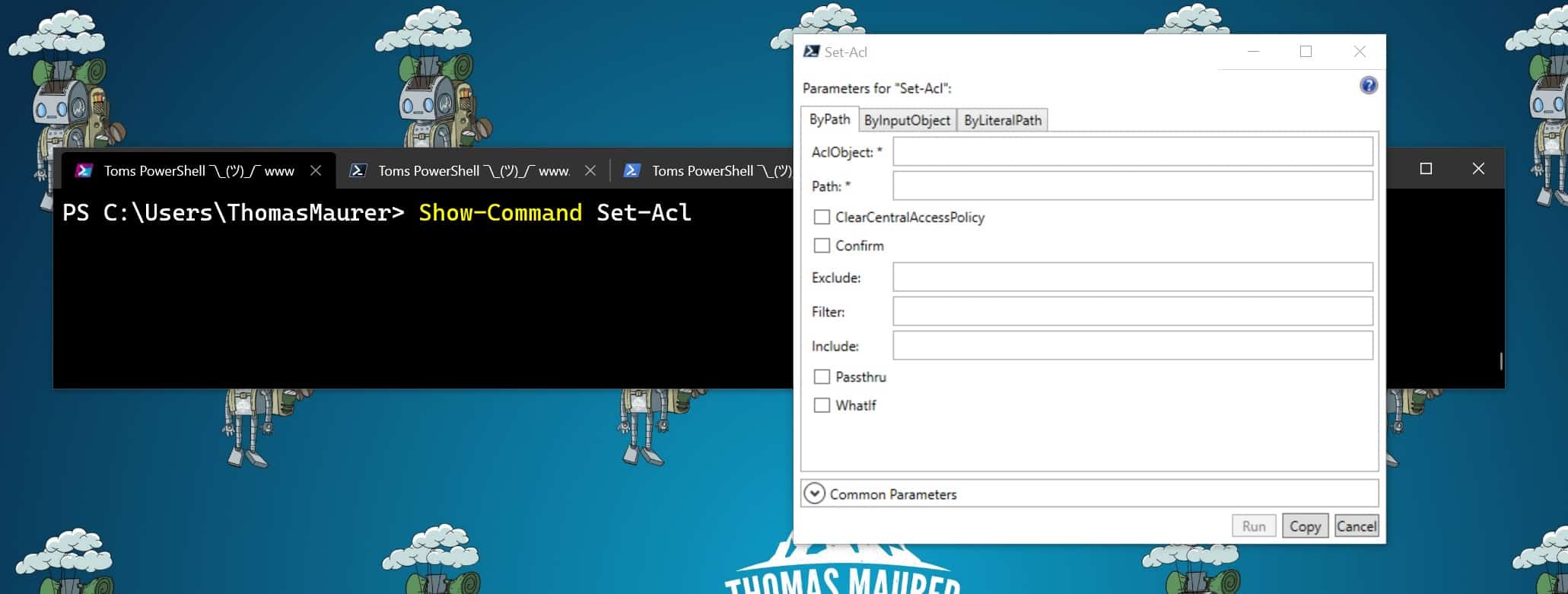
Hiển thị lệnh PowerShell 7
Đối với mỗi đối tượng - Song song
Kể từ khi tôi bắt đầu sử dụng PowerShell và làm việc với các đối tượng, ForEach-Object là một trong những lệnh ghép ngắn quan trọng nhất. Bằng cách thêm tham số -Parallel vào lệnh ghép ngắn ForEach-Object, bạn có thể thực thi một khối lệnh song song, tương tự như tùy chọn chúng ta có với PSWorkflow . Với tùy chọn đó, hiệu suất có thể tốt hơn rất nhiều nếu bạn làm việc với một tập hợp lớn các đối tượng. Bạn cũng có thể tùy chọn đặt số luồng tối đa, sẽ được sử dụng song song (số luồng mặc định được đặt thành 5) với tham số -ThrottleLimit.
Nhập Mô-đun Windows PowerShell vào PowerShell 7
Không phải tất cả các mô-đun Windows PowerShell hiện đang hoạt động với .NET Core. Với PowerShell Core 6, chúng tôi đã có Mô-đun tương thích Windows, cho phép chúng tôi nhập các mô-đun Windows PowerShell không tương thích với PowerShell Core 6 bằng cách tận dụng WinRM. Trong PowerShell 7, nhóm Powershell đã bao gồm để nhập trực tiếp mô-đun Windows PowerShell bằng cách sử dụng Import-Module và -UseWindowsPowerShell mà không cần dựa vào WinRM. Tuy nhiên, bạn vẫn cần Windows PowerShell 5.1 trên máy.
Cmdlet của bảng tạm
With Windows PowerShell, we got cmdlets to interact with the clipboard. Since we moved to a cross-platform version, we lost these cmdlets. Now they are back! You can use Get-Clipboard and Set-Clipboard on Windows, Linux, and macOS. Currently, only text is supported, and on Linux, xclip is required.
Get-Counter (Windows Performance Counter)
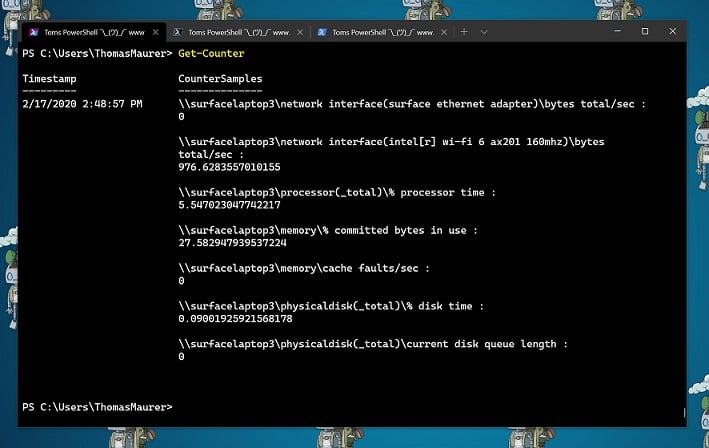
PowerShell Windows Performance Counter
You can again use the Get-Counter cmdlet to get Windows performance counter information.
Out-Printer (Windows)
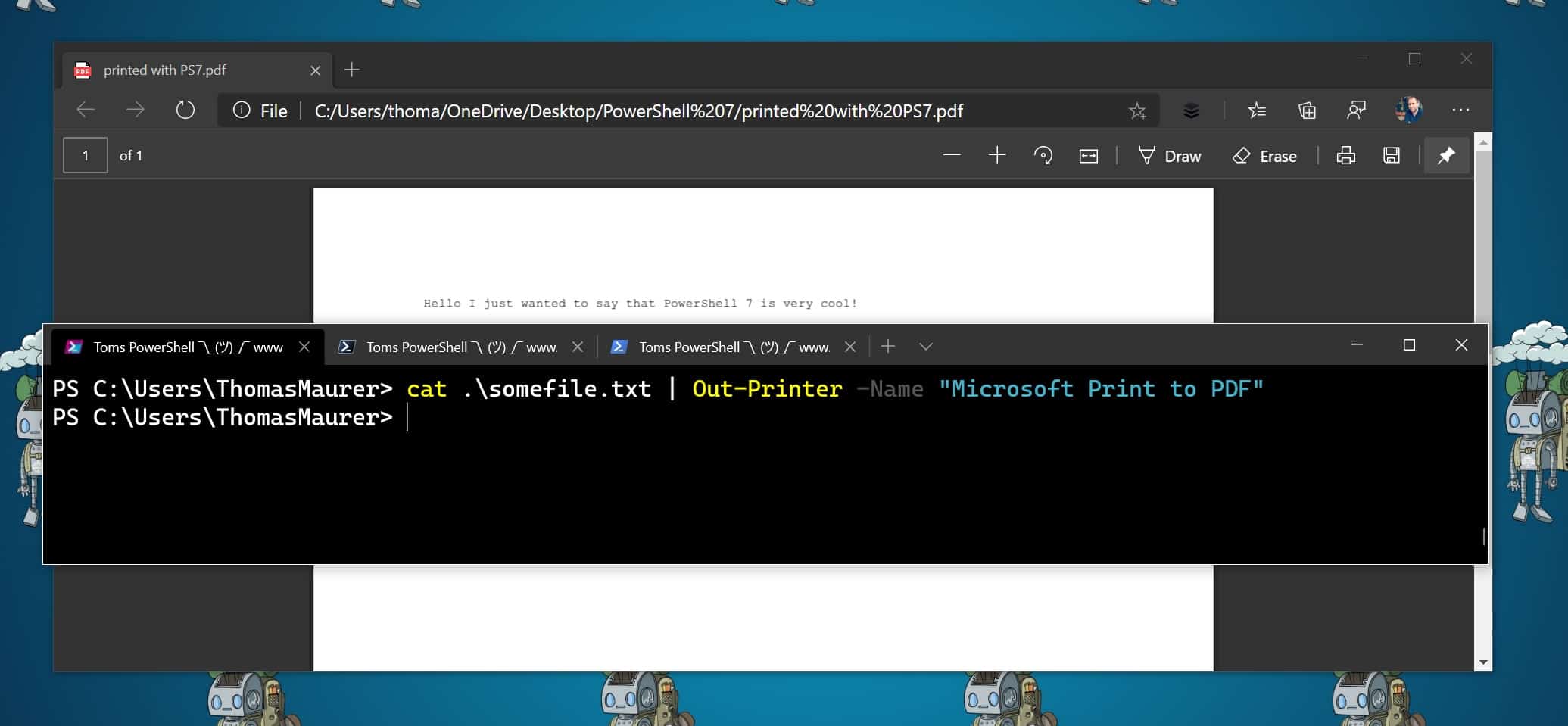
Out-Printer
With the Out-Printer cmdlet, you can send a PowerShell object to the printer (Windows only). This also works with PDF printers in Windows 10.
Clear-RecycleBin (Windows)
On Windows, you can now use the Clear-RecycleBin cmdlet to empty the Windows recycle bin.
Test-Connection
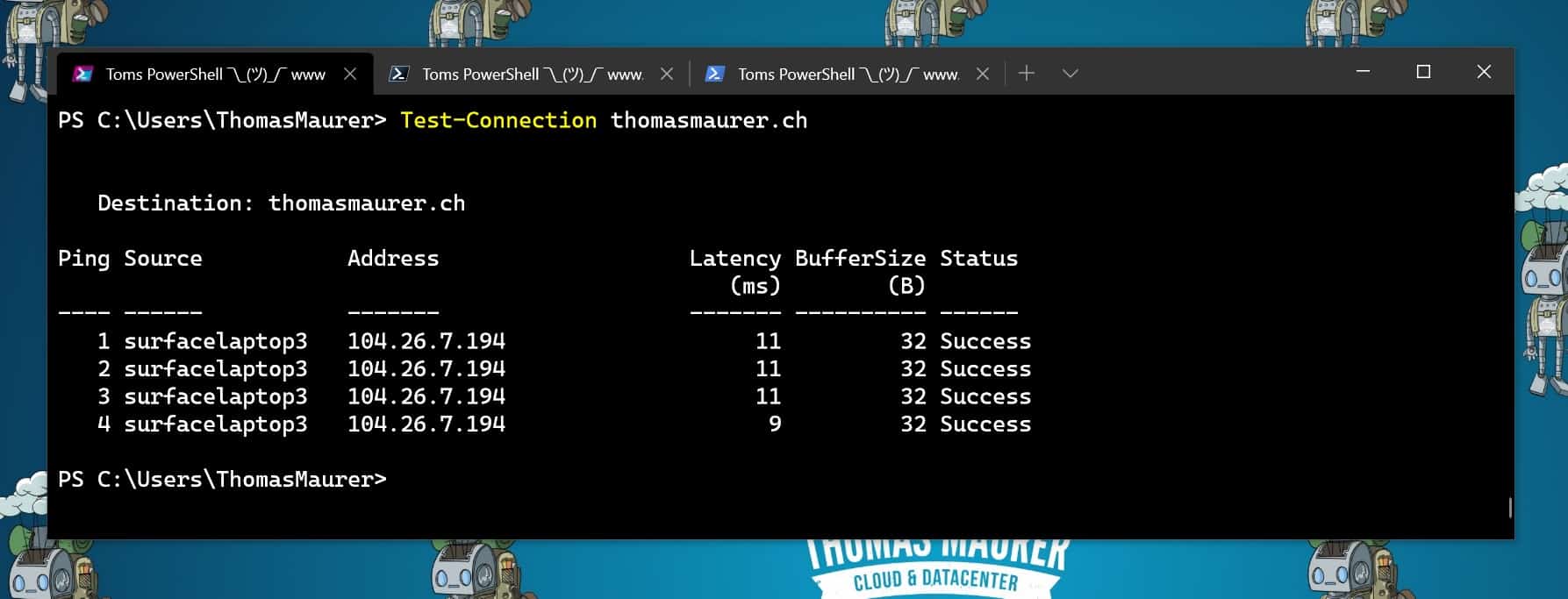
Test-Connection PowerShell 7
The Test-Connection cmdlet got updated to give you a more consistent experience between Windows PowerShell and PowerShell 7.
Null assignment and coalescing operators (?? and ??=)
You remember my blog post about how you can check if a PowerShell variable is $null, how you basically used an if..else statement to check if the variable is $null. In PowerShell 7, we have new Null conditional operators to make this simpler.
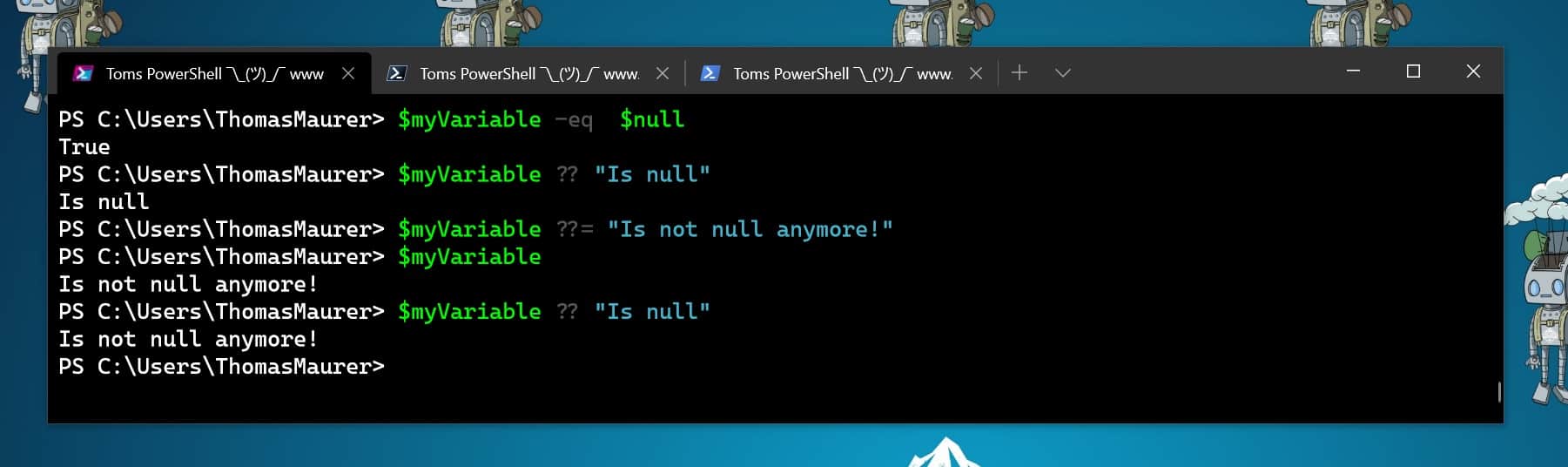
Null conditional operators
With the new ?? null coalescing operator to get the value of a statement if it’s not $null or return something else if it is $null. And with the new ??= null conditional assignment operator, you can easily assign a variable a value, but only if the variable is $null.
Get-Hotfix (Windows)
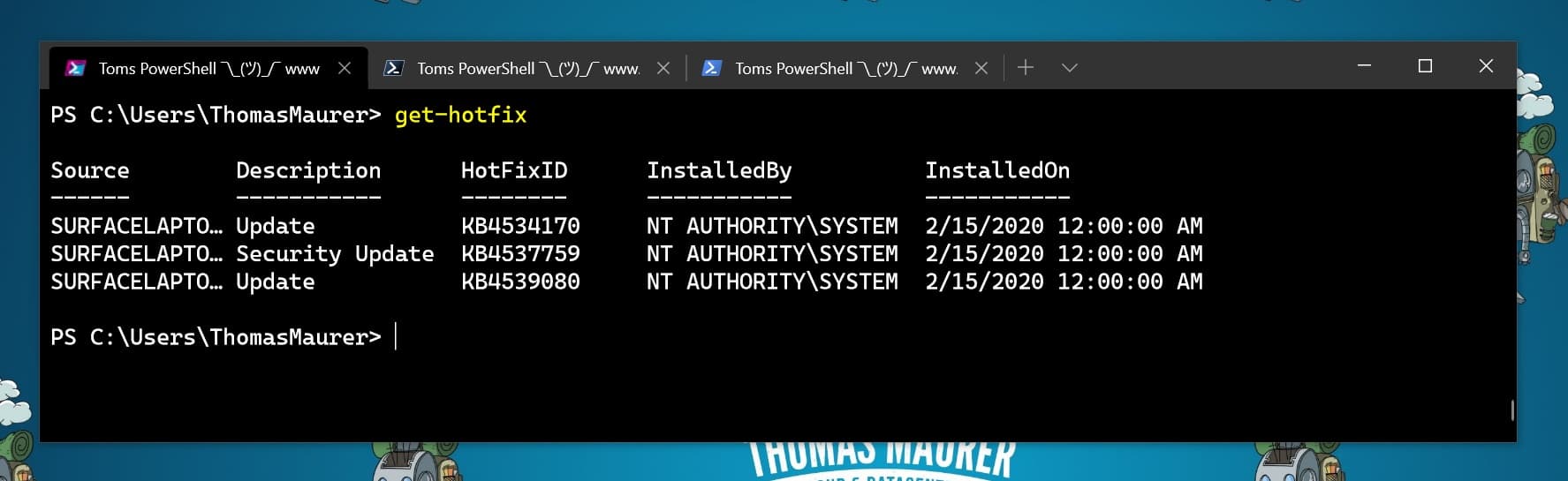
Get-Hotfix
Thanks to .NET Core 3, the Get-Hotfix cmdlet is back in PowerShell 7. Get-Hotfix gets hotfixes and updates that are installed on a local or remote computer.
Emphasis with Select-String
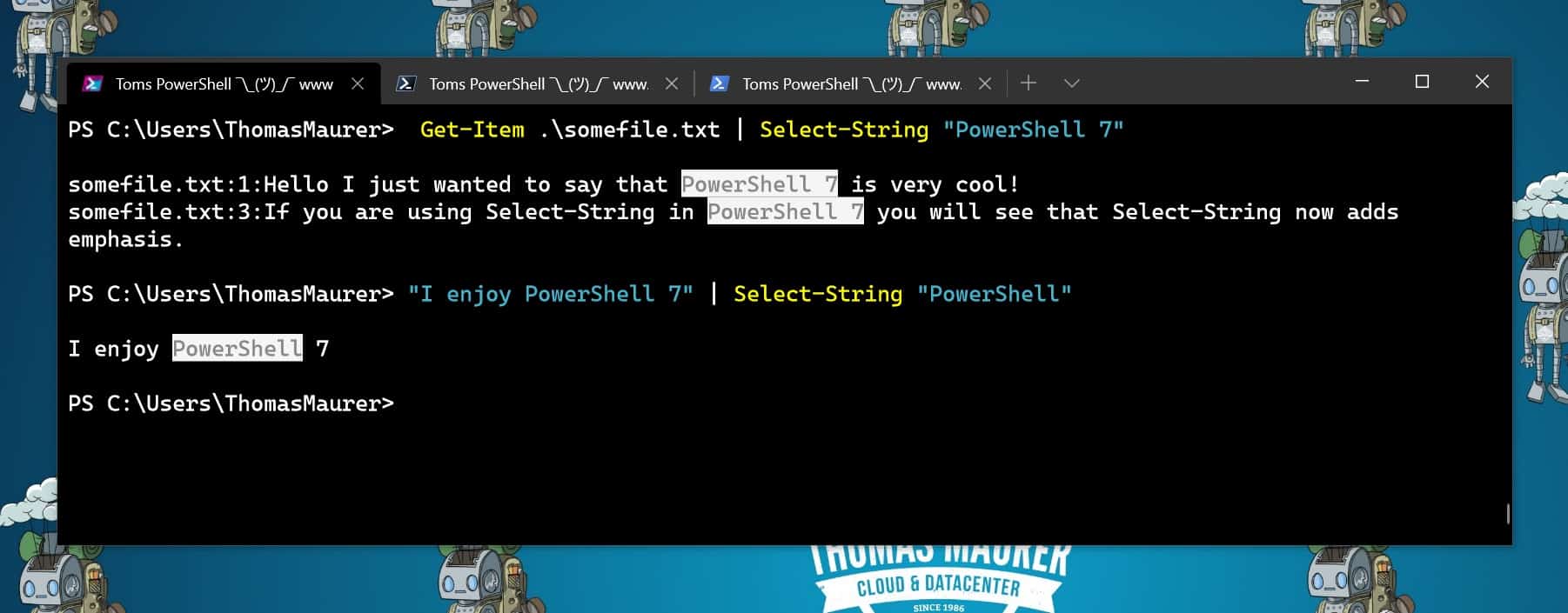
PowerShell Select-String adds emphasis
You might remember my blog on how you can use Select-String in PowerShell, just like grep on Linux. Now with PowerShell 7, Select-String just got improved and added emphasis to highlight the text in a string that matches the selection criteria.
New Error View with ConciseView
I am working with PowerShell for a while now, and when you get an error, all the red text and information can be overwhelming. I am happy that PowerShell 7 addresses that with the new ConciseView for errors. The $ErrorView preference variable allows you to change how errors are formatted. Before, we just had NormalView (the default view) and CategoryView.
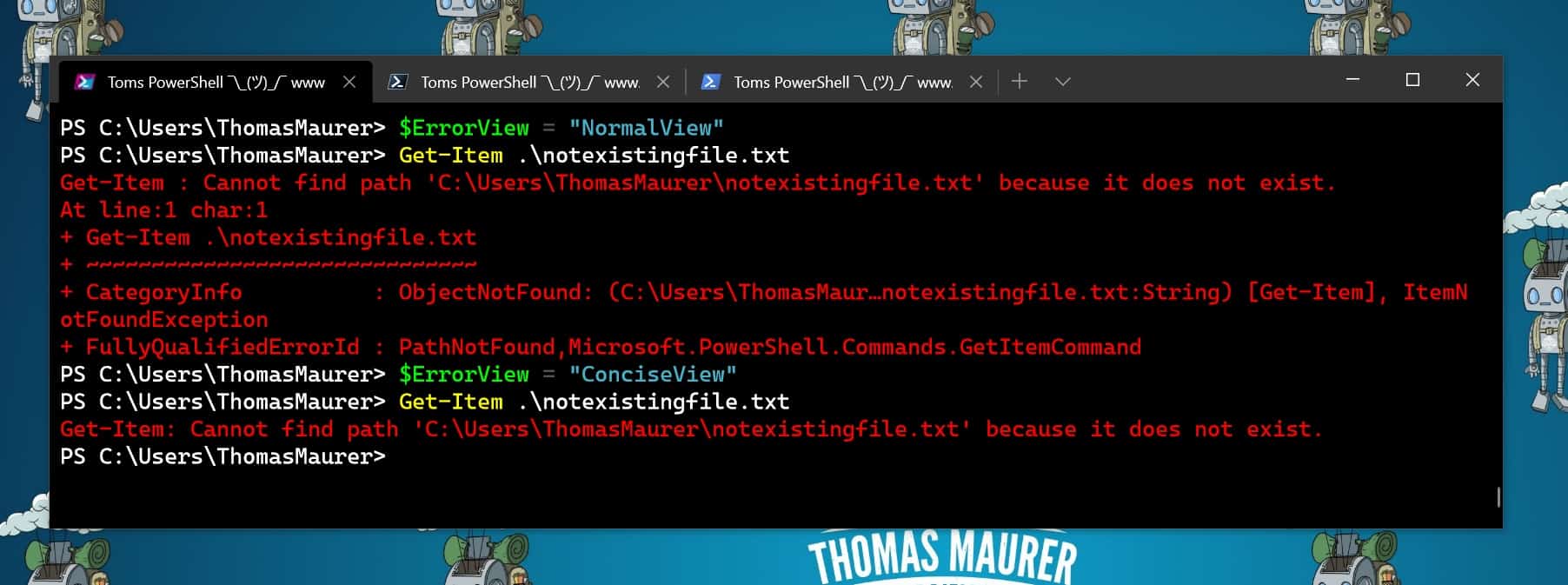
PowerShell 7 ErrorView ConciseView
The new ConciseView tries to return just the relevant error message, without the additional noise.
The new Get-Error cmdlet
As you can see, the new ConciseView gives you more precise but limited information on the error, which can make it easier. However, in many cases, you want to have much richer information on the error.

Get-Error
Therefore the PowerShell team added a new cmdlet called Get-Error, which will, by default, will provide you with a formatted view of the most recent error, including showing specific nested types like Exceptions and ErrrorRecords making it easier to troubleshoot.
Pipeline chain operators (&& and ||)
One of the new features in PowerShell 7 are the && and || operators to conditionally chain pipelines. These operators are known in PowerShell as pipeline chain operators. They work very simply. The && operator would execute the right-hand pipeline if the left-hand pipeline succeeded. The || operator would run the right-hand pipeline if the left-hand pipeline failed.

PowerShell 7 Pipeline Chain operators
For example, if you want to create a new folder and copy files to that new folder, you can use the pipeline chain operators. The left-hand pipeline would create the folder, and the right-hand pipeline would then start copying the files, you only want to copy the files, if the folder was successfully created.
Ternary operator
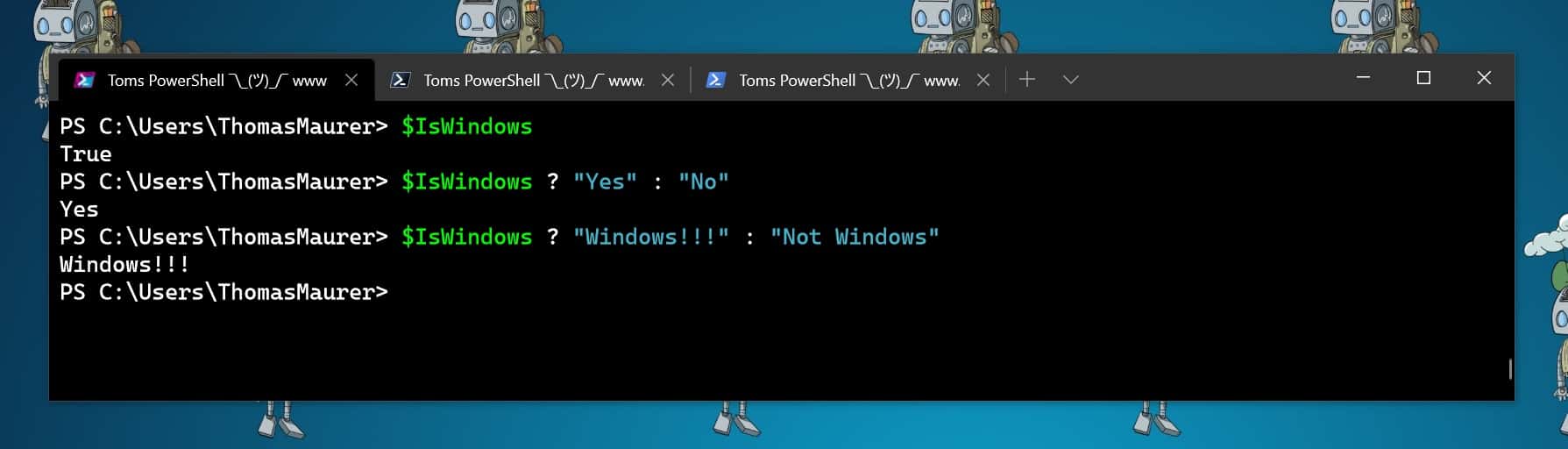
PowerShell 7 Ternary operator
You might have written many if..else statements to give back a value depending on true or false. The conditional operator ?:, also known as the ternary conditional operator, evaluates a Boolean expression and returns the result of one of the two expressions. The ternary operator is popular in the C# sharp community.
PowerShell Desired State Configuration (DSC) improvements (Experimental)
- DSC Configuration Compilation – You can now compile a DSC Configuration script to a mof file on non-Windows machines. Before you needed a Windows machine to compile the DSC Configuration script.
- Invoke-DscResource – You can now leverage DSC resources while by-passing the Local Configuration Manager (LCM). You can now author your own LCM or leverage existing DSC resources within your scripts.
Long Term Servicing
PowerShell 7 GA will also be our first Long Term Servicing (LTS) release, which is a change from the current Modern Lifecycle support for PowerShell Core 6. PowerShell 7 will be supported for as long as .NET Core 3.1 is supported.
Even more:
- Update-List is back
- Start-Job -WorkingDirectory
- Consider DBNull and NullString as $null
- Read-Host -Prompt works for all input
- Support negative numbers with -Split operator
- pwsh as a login shell
- Format-Hex improved formatting
- Extended Unix Filesystem Information
- Rất nhiều tính năng khác và cải thiện chất lượng cuộc sống không thể liệt kê hết ở đây
Cách cài đặt và cập nhật PowerShell 7
PowerShell 7 là bản cài đặt bổ sung cho Windows, macOS hoặc Linux. Bạn có thể tải xuống PowerShell 7 từ đây. Nếu bạn đang tìm cách tự động cài đặt và cập nhật PowerShell 7 , hãy xem bài đăng trên blog của tôi .
Trước khi giới thiệu cho bạn tùy chọn cài đặt PowerShell 7, tôi muốn chia sẻ với bạn tài liệu hướng dẫn cài đặt PowerShell 7 trên các hệ điều hành khác nhau như Windows, macOS và Linux.
- Cài đặt PowerShell Core trên Windows
- Cài đặt PowerShell Core trên Linux
- Cài đặt PowerShell Core trên macOS
- Cài đặt PowerShell Core trên ARM
Tôi hy vọng blog này cung cấp cho bạn cái nhìn tổng quan tuyệt vời về những tính năng mới trong PowerShell 7. Tính năng hoặc cải tiến yêu thích của bạn trong PowerShell 7 là gì, vui lòng cho tôi biết trong phần bình luận. Nhân tiện, nếu bạn là người dùng Windows 10, bạn cũng nên thử Windows Terminal mới .
Thẻ: Cmdlet , Cải tiến , Tính năng , tính năng , Linux , macOS , Microsoft , Mới , PowerShell , PowerShell 7 , Có gì mới , Windows , Windows Powershell