PowerShell 7
Nhóm PowerShell vừa công bố PowerShell 7. PowerShell 7 được xây dựng trên .NET Core 3 và mang lại nhiều API theo yêu cầu của các mô-đun được xây dựng trên .NET Framework để chúng hoạt động với thời gian chạy .NET Core. Trong khi PowerShell Core 6 đang tập trung vào việc mang lại khả năng tương thích đa nền tảng, PowerShell 7 sẽ tập trung vào việc biến nó thành một sự thay thế khả thi cho Windows PowerShell 5.1 và gần ngang bằng với Windows PowerShell. Đây là cách bạn có thể cài đặt và cập nhật PowerShell 7 trên Windows và Linux bằng cách sử dụng một lớp lót đơn giản.
Nếu bạn muốn biết có gì mới trong PowerShell 7, hãy xem bài đăng trên blog của tôi!
Một ví dụ tuyệt vời về cách PowerShell đa nền tảng có thể hoạt động, hãy xem bài đăng trên blog của tôi: Cách thiết lập PowerShell SSH Remoting.
Cài đặt PowerShell 7
Trước khi hiển thị cho bạn tùy chọn một lớp lót để cài đặt PowerShell 7, tôi muốn chia sẻ với bạn tài liệu để cài đặt PowerShell 7 trên các hệ điều hành khác nhau như Windows, macOS và Linux.
- Cài đặt PowerShell Core trên Windows
- Cài đặt PowerShell Core trên Linux
- Cài đặt PowerShell Core trên macOS
- Cài đặt PowerShell Core trên ARM
Cài đặt từ Microsoft Store
Nếu bạn đang chạy Windows 10, bạn có thể dễ dàng cài đặt PowerShell 7 trở lên thông qua Microsoft Store.
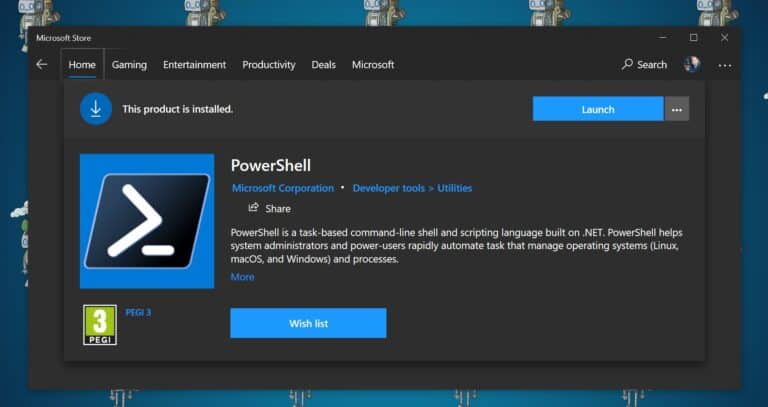
Tải xuống và cài đặt PowerShell trong Microsoft Store
Bạn có thể tìm kiếm nó trong ứng dụng Microsoft Store trên Windows 10 hoặc bạn chỉ cần sử dụng liên kết này.
Cài đặt PowerShell 7 bằng winget
Nếu bạn đang chạy Windows 10 và bạn có một công cụ dòng lệnh mới được gọi là winget. Công cụ dòng lệnh winget cho phép bạn dễ dàng khám phá, cài đặt, nâng cấp, gỡ bỏ và cấu hình các ứng dụng trên máy tính Windows 10.
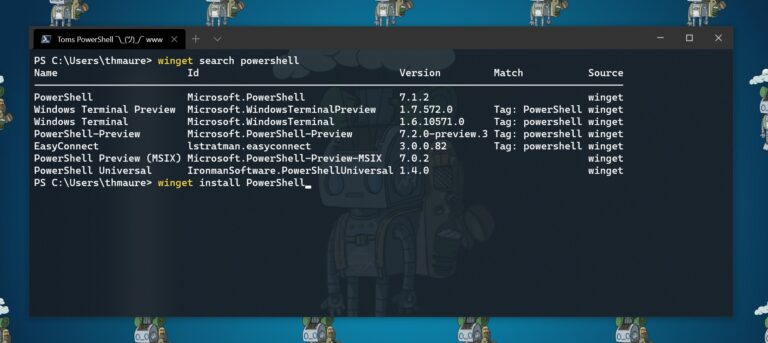
PowerShell Winget
Bạn chỉ cần gõ lệnh sau, để tải phiên bản PowerShell mới nhất.
winget install PowerShell
Sau đó, bạn cũng sẽ có thể tự động hóa quá trình tải xuống ứng dụng từ Windows Store bằng Winget.
Một lớp lót để cài đặt hoặc cập nhật PowerShell 7 trên Windows 10
Steve Lee (Giám đốc kỹ sư phần mềm chính của Microsoft trong Nhóm PowerShell) đã chia sẻ một số dòng một, giúp bạn nhanh chóng cài đặt và cập nhật:
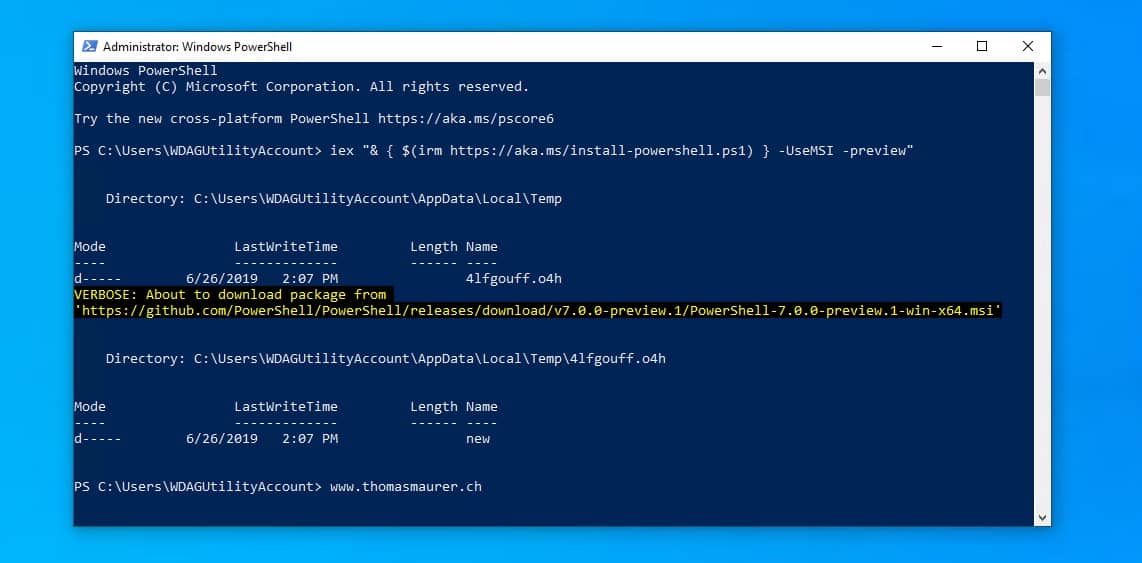
Bạn có thể sử dụng lệnh duy nhất này trong Windows PowerShell để cài đặt PowerShell 7.
iex "& { $(irm https://aka.ms/install-powershell.ps1) } -UseMSI"
Có các công tắc bổ sung, ví dụ, cài đặt các bản dựng hàng ngày của các bản xem trước PowerShell mới nhất.
-Destination
Đường dẫn đích để cài đặt PowerShell Core đến.
-Hàng ngày
Cài đặt PowerShell Core từ bản dựng hàng ngày.
Lưu ý rằng mô-đun 'PackageManagement' là bắt buộc để cài đặt gói hàng ngày.
-Xem trước
Cài đặt bản xem trước mới nhất, hiện là phiên bản 7.
-UseMSI
Sử dụng trình cài đặt MSI.
-Quiet
The quiet command for the MSI installer.
-DoNotOverwrite
Do not overwrite the destination folder if it already exists.
-AddToPath
On Windows, add the absolute destination path to the ‘User’ scope environment variable ‘Path’;
On Linux, make the symlink ‘/usr/bin/pwsh’ points to “$Destination/pwsh”;
On MacOS, make the symlink ‘/usr/local/bin/pwsh’ points to “$Destination/pwsh”.
One-liner to install or update PowerShell 7 on Linux
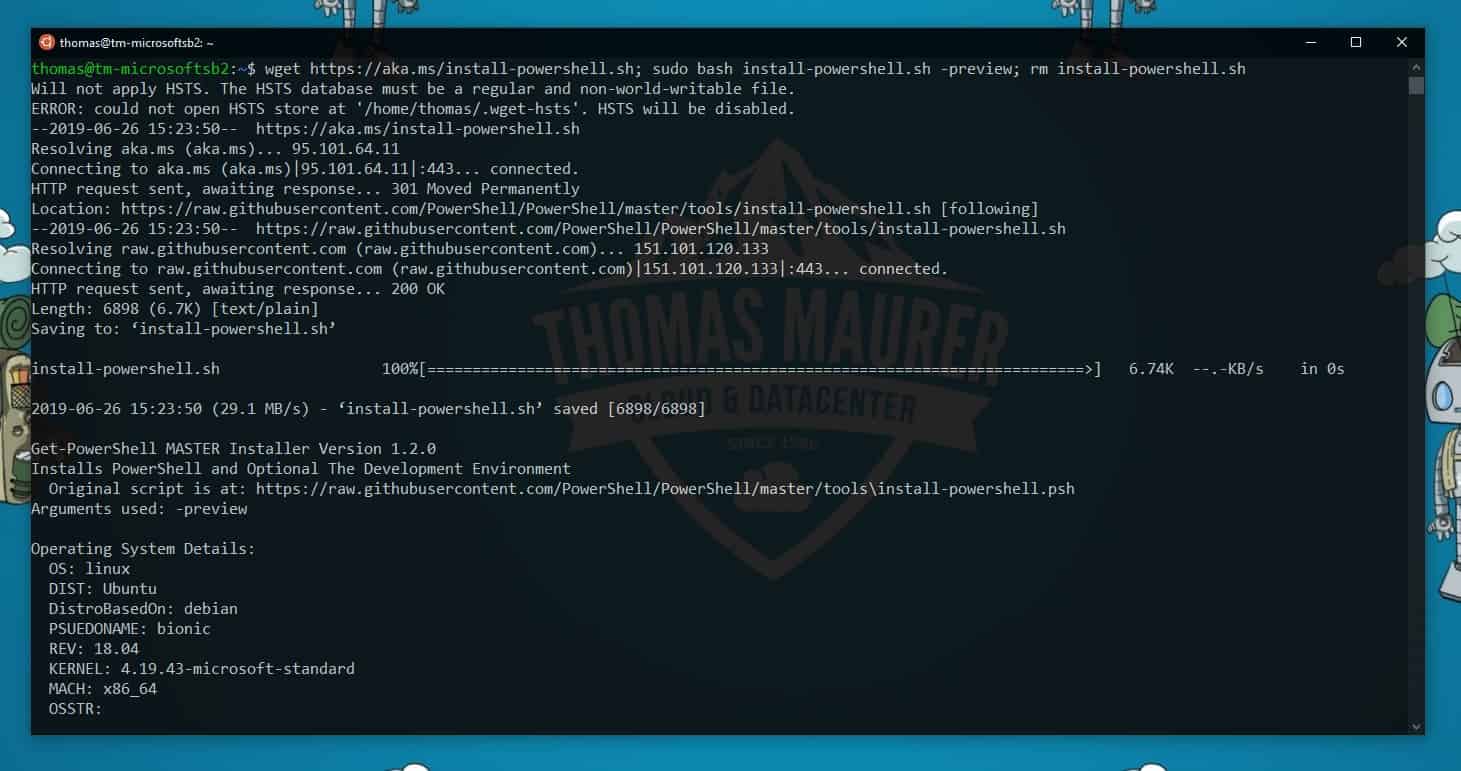
You can use this as a single command to install PowerShell 7 on Linux.
wget https://aka.ms/install-powershell.sh; sudo bash install-powershell.sh; rm install-powershell.sh
Depending on your distro you are using, this will register Microsoft’s pkg repos and install that package (deb or rpm).
You can also use the following switches:
-includeide
Installs VSCode and VSCode PowerShell extension (only relevant to machines with a desktop environment)
-interactivetesting
Do a quick launch test of VSCode (only applicable when used with -includeide)
-skip-sudo-check
Use sudo without verifying its availability (hard to accurately do on some distros)
-preview
Installs the latest preview release of PowerShell side-by-side with any existing production releases
To currently run the PowerShell Preview, you can run the following command:
pwsh
After Installing
After you have installed PowerShell 7, also make sure to update PowerShellGet and the PackageManagement module.
You might ask, what my preferred way is? On Windows 10 I am definitely using the Microsoft Store and with winget I can easily do that from the command line. I hope this blog post was helpful. If you have any questions, please let me know in the comments.
Tags: download, install, Install PowerShell 7, Linux, macOS, Microsoft, One-liner, PowerShell, PowerShell 7, PowerShell 7 Preview, preview, pwsh, update, Update PowerShell, Update PowerShell 7, Windows, Windows 10, Windows Server